April 5, 2023

Flight Tracking Made Easy: A Step-by-Step Guide to Using dump1090-mutability on Linux


 Have you ever wondered about the planes flying overhead? What airline they belong to? Where they're going? Well, wonder no more! With the help of ADS-B (Automatic Dependent Surveillance-Broadcast), you can track flights in your area using a simple software package called dump1090-mutability. And the best part? You can do it all from the comfort of your own Linux machine. In this step-by-step installation guide, we'll show you how to get started.


Step 1: Installing dump1090-mutability


The first step is to install dump1090-mutability on your Linux machine. We'll assume that you're running Ubuntu or Debian, but the installation process should be similar for other Linux distributions. Open a terminal window and enter the following command:


$ sudo apt-get update
$ sudo apt-get install dump1090-mutability rtl-sdr

Step 2: Running dump1090-mutability


Now that you've installed and configured dump1090-mutability, it's time to run it. Open a terminal window and enter the following command:


$ sudo dump1090-mutability --interactive


This will start dump1090-mutability and display the ADS-B data from nearby aircraft in real-time.


Step 3: Viewing Metric Units


By default, dump1090-mutability displays the output in imperial units. If you prefer metric units, you can use the following command instead:


$ sudo dump1090-mutability --metric  --interactive 


This will display the ADS-B data in metric units.


Conclusion -


Tracking flights with ADS-B using dump1090-mutability is a fun and educational project that can be easily accomplished with a Linux machine. By following this step-by-step installation guide, you'll be able to view the ADS-B data from nearby aircraft and learn more about the planes flying overhead. So why not give it a try? Who knows what kind of interesting flights you'll discover!


Also Read - 


How to create a ESP8266 Wi-Fi Deauthenticator in just $4


DIY WiFi Repeater with an ESP8266: A step by step Guide 


How to Secure Your Linux System by Adding a Bootloader Password

January 8, 2023

How to Secure Your Linux System by Adding a Bootloader Password


The GRUB (Grand Unified Bootloader) is a bootloader that is used by many Linux distributions to boot the operating system. You can set a password for GRUB to protect the boot process and prevent unauthorized changes to the boot options.

To set a password for GRUB in Linux, follow these steps:
 

1) Open a terminal window on your Linux machine.

2) Run the grub-mkpasswd-pbkdf2 command to generate a password hash. For example:

$ sudo grub-mkpasswd-pbkdf2


This will prompt you to enter a password and confirm it. The command will then output a password hash.


3) Edit the GRUB configuration file using a text editor. The file is usually located at /etc/grub.d/40_custom, but the location may vary depending on your distribution.


$ sudo nano /etc/grub.d/40_custom


4) Add the following lines to the configuration file, replacing <username> with your desired username and <password_hash> with the password hash generated in step 2:

set superusers="{username}"
password_pbkdf2 {username} {password_hash}


5) Save and close the configuration file. 


6) Run the update-grub command to update the GRUB configuration.


$ sudo update-grub


7) Reboot your machine and test the password by pressing e at the GRUB boot menu to edit the boot options. You should be prompted for the password before you can make any changes.

It's important to note that the password protection provided by GRUB is only as secure as the password you set. Choose a strong, unique password to protect your system from unauthorized access.

That's it! If you have any problem regarding this, please comment below. 


Also Read -

How to create a ESP8266 Wi-Fi Deauthenticator in just $4

DIY WiFi Repeater with an ESP8266: A Step by Step Guide 

How to do rogue AP attack in Linux using WifiPumpkin3

January 4, 2023

DIY WiFi Repeater with an ESP8266: A Step by Step Guide


The ESP8266 is a low-cost, low-power microcontroller with built-in WiFi support. It was originally developed by Espressif Systems as a solution for offloading WiFi networking functions from more expensive, power-hungry microprocessors.

An ESP8266 WiFi repeater, also known as a WiFi range extender, takes an existing WiFi signal and rebroadcasts it to create a second network. This can be used to extend the range of a WiFi network, or to provide wireless connectivity to devices that are out of range of the main network.


To set up an ESP8266 WiFi repeater, you will need:


  • An ESP8266 development board, such as the NodeMCU or Wemos D1 mini or Lolin
  • A USB data cable, to power the ESP8266
  • The Arduino IDE software, which you can download for free from the Arduino website (https://www.arduino.cc/en/Main/Software)


1] First you need to configure the ESP8266 in the Arduino IDE, follow these steps:

  1. Download and install the Arduino IDE from the Arduino website (https://www.arduino.cc/en/Main/Software).
  2. Connect your ESP8266 development board to your computer using a USB cable.
  3. Open the Arduino IDE and go to "File" > "Preferences".
  4. In the "Additional Board Manager URLs" field, enter the following URL: http://arduino.esp8266.com/stable/package_esp8266com_index.json
  5. Click "OK" to close the Preferences window.
  6. Go to "Tools" > "Board: " > "Boards Manager...".
  7. In the Boards Manager, search for "esp8266" and click on the "Install" button for the "esp8266" entry.
  8. Wait for the installation to complete, then close the Boards Manager window.
  9. Go to "Tools" > "Board: " and select your ESP8266 board from the list. The exact board name will depend on the specific ESP8266 development board you are using.
  10. Go to "Tools" > "Port" and select the COM port for your ESP8266. The COM port should appear as "USB-SERIAL CH340 (COMxx)" or "FT232R USB UART (COMxx)".


2] After configuration, Copy and paste the following code into the Arduino IDE, replacing "your_ssid" and "your_password" with the SSID and password of your existing WiFi network:


#include 
 //Replace Your Router's SSID and password.

const char * ssid = "your_ssid";
const char * password = "your_password";

// Replace ESP Wifi SSID and Password

const char * ssid_soft_ap = "ESPRepeater";
const char * pwd_soft_ap = "Pass@12345"
int Wifi_SoftAP_Channel = 9;

// Rename ESP name to find easily on your router

const char * espHostname = "ESPRepeater";
void setup() {
  WiFi.mode(WIFI_AP_STA);
  WiFi.begin(ssid, password);
  while (WiFi.status() != WL_CONNECTED) {
    WiFi.hostname(espHostname);
    delay(500);
  }
  WiFi.softAP(ssid_soft_ap, pwd_soft_ap, Wifi_SoftAP_Channel);
}
void loop() {}


3] Click the "Upload" button to upload the code to the ESP8266.


4] Once the code has been uploaded, open the serial monitor in the Arduino IDE. The ESP8266 should connect to your existing WiFi network and display its IP address.


5] Connect a device to the ESP8266's WiFi network and verify that it is able to connect to the internet.


That's it! Your ESP8266 should now be functioning as a WiFi repeater, rebroadcasting the signal from your existing WiFi network and providing wireless connectivity to devices that are out of range.

Also Read -

How to create a ESP8266 Wi-Fi Deauthenticator in just $4

How to do rogue AP attack in Linux using WifiPumpkin3 

Enable monitor mode in linux without disconnecting Wi-Fi

December 25, 2022

Fix "pip is configured with locations that require TLS/SSL, however the ssl module in Python is not available." In Termux


 Many of Termux users facing issue of pip module when you trying to update or install pip package, it will shows following error - 


WARNING: pip is configured With Locations that require TLS/
SSL. however the SSI module in Python is not available.
WARNING: Retrying (Retry( total-a, connect-Noner read=None,
redirect=None, status=None)) after connection broken by 'SS
connect to HTTPS URL because the SSL module i
s not available. :
/ simple/prettytable/


The main issue is occurring due to missing SSL module. So we required SSL module to use pip. To fix this issue, we need to install openssl package into Termux. So follow these steps to fix this issue.


Steps -

1) Update packages

$ apt update && apt upgrade


2) Now install openssl package

$ apt install openssl


3) After installing openssl, check pip is working or not

$ pip install --upgrade pip


4) If there isn't error, Then it means issue is resolved.


If you have any issue related to this post, Please comment below.


Also Read -

How to create a ESP8266 Wi-Fi Deauthenticator 

Useful OSINT tool for Bug Hunters - Photon


Tags -

#termux #issue #pip #pipissue #ssl

December 11, 2022

How to create a ESP8266 Wi-Fi Deauthenticator in just $4


The ESP8266 is designed to work with microcontroller boards like Arduino and Raspberry Pi, making it easy to integrate into existing projects with minimal overhead. The ESP8266 is a low-cost microcontroller that can be programmed to operate as a stand-alone system or as an embedded part of a larger product. It has built-in Wi-Fi connectivity, which allows it to connect to other devices and send/receive data from them.

This project is to build a simple ESP8266 Universal Wifi Deauthenticator. The esp8266 can simply deauthenticate other networks that are connected to your router and disconnect them, causing the connected network to reconnect slowly over time. This method can be used to delay an attacker's time in the network so they cannot compromise it. ESP8266 will send a packet requesting that it connected to the protected network. As soon as this happens, all clients will shut down immediately so they won't create any traffic on WiFi network.

In this post, we're going to create esp8266 wifi jammer or deauthenticator in simple steps.


Requirements - 

1) An ESP8266 module

2) USB data cable


Installation -

1) First we need to install drivers according to chipset. There are 2 types of chipset - CH34x and CP210x. So identify chipset and install drivers according to your module.

Download Drivers for CH340

Download Drivers for CP210x 


2) After this, download flasher tool from Github link. 

Download N2D2 Flasher Tool 


3) Now Extract zip file and launch N2D2 tool


4) Now connect ESP8266 using USB Data Cable to Laptop / Desktop

5) The tool will automatically detects drivers and you device


6) Select 'Get the latest image from internet'


7) Now select software version for your device. We need software which ends with 'DSTIKE_DEAUTHER_V1'. You can choose V2 or V3. After this, it will download latest software from Github.


8) Now Select 'Allow software installation'


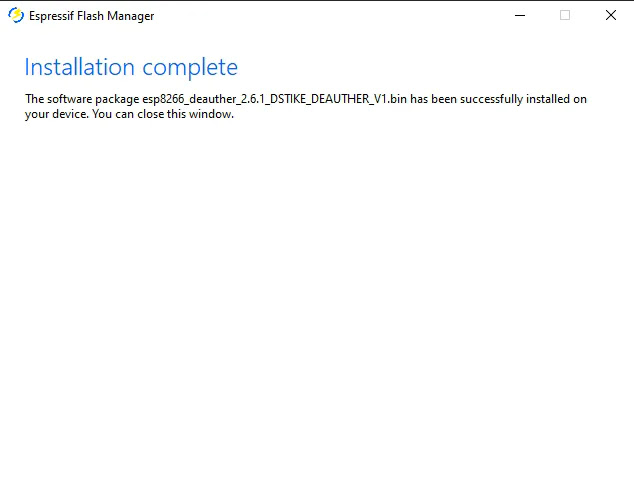
9)  After successful installation, close the tool.


How to use -

1) Connect your device to esp8266 using wifi. You can see the network name 'pwned'. Use password "deauther" to connect to the esp8266.


2) When device connects, Open you browser and go to this address -

192.168.4.1


3) Click on "I have read and understood the notice above"


4) Now you will get all wi-fi networks available near to you. Select any one or multiple networks from list


5) Now goto the topmost navbar and select 'Attack' option. You will be redirected to attack page. You will get 3 options. Select any option of your choice


How these 3 options works -

1] Deauth

Closes the connection of WiFi devices by sending deauthentication frames to access points and client devices you selected.
This is only possible because a lot of devices don't use the 802.11w-2009 standard that offers a protection against this attack.
Please only select one target! When you select multiple targets that run on different channels and start the attack, it will quickly switch between those channels and you have no chance to reconnect to the access point that hosts this web interface.
 

2] Beacon

Beacon packets are used to advertise access points. By continuously sending beacon packets out, it will look like you created new WiFi networks.
You can specify the network names under SSIDs.
 

3] Probe

Probe requests are sent by client devices to ask if a known network is nearby.
Use this attack to confuse WiFi trackers by asking for networks that you specified in the SSID list.
It's unlikely you will see any impact by this attack with your home network.


That's it. Don't use this for illegal purposes.


TAGS -

#wifi-jammer #wifi-deauthenticator #esp8266 #nodemcu


Also Read -

Useful OSINT tool for bug hunters - Photon

Enable monitor mode in linux without disconnecting wifi 


November 20, 2022

Useful OSINT tool for bug hunters - Photon [2024]


OSINT tool is an open source intelligence (OSINT) tool designed to search for subdomains, web archives, and other related information. It works by using Google's API to pull data from the site, then processes it through a number of different filters before presenting it back to the user in a clean and easy-to-read interface.


In this post, we are going to discuss about a OSINT tool - Photon. Photon is a python-based tool which is useful in various purposes like Website cloning, find archive pages and subdomains of any website. 


Photon can extract the following data while crawling:

  • URLs (in-scope & out-of-scope)
  • URLs with parameters
  • Intel (emails, social media accounts, amazon buckets etc.)
  • Files (pdf, png, xml etc.)
  • Secret keys (auth/API keys & hashes)
  • JavaScript files & Endpoints present in them
  • Strings matching custom regex pattern
  • Subdomains & DNS related data


Installation

1) Update packages

$ sudo apt update


2) Install required packages

$ sudo apt install python git


3) Clone Photon from Github

$ git clone https://github.com/s0md3v/Photon


4) Install requirements

$ cd Photon
$ sudo pip3 install -r requirements.txt


5) Now run this tool

$  python3 photon.py -h


You will see instructions to use Photon


How to Use -


1) To find all URLs in any website

You can easily find all URLs including hidden URL by using this -

$ python3 photon.py -u http://testphp.vulnweb.com/ --only-urls


2) To clone website

You can easily clone any website by using this -

$ python3 photon.py -u http://testphp.vulnweb.com/ --clone


3) To find subdomains

You can easily find subdomains and DNS data of any website by using this -

$ python3 photon.py -u http://testphp.vulnweb.com/ --dns


Output will be stored in the directory format of website's name.


If you're facing any issues regarding this, please comment below.


Related Information - 


Also Read - 

Fix Termux repository related issues [2022]

How to create metasploit payload easily using Linux and Termux


Tags -

#linux #OSINT #tool #termux #subdomain-finder

April 16, 2022

Fix screen resolution of Ubuntu in VMware workstation [2022]


 If you install Ubuntu on VMware workstation, there are some issues which you need to fix. The most common issue we face about Ubuntu is screen resolution. After installing Ubuntu, we got a small screen resolution of Ubuntu. There are other ways to fix this issue like using xrandr command, but this is a temporary solution. If you try to fix this using other ways, system will have some errors and maybe the entire GUI will fail. So in this post we are going to fix this issue. 


Solution - 


1) First update all packages 


$ sudo apt-get update


2) Now install Open VM Tools 


$ sudo apt-get install open-vm-tools-desktop


After this command, screen will automatically fix to correct resolution. If not, try to reboot your system and then check it. 

That's it ! 

If you have any issue regarding this, Leave a comment ! 


Also read -

Enable monitor mode without disconnecting wifi in Linux

How to do rouge AP attack using Wifipumpkin3

December 7, 2021

Enable monitor mode in linux without disconnecting Wi-Fi

 To hack a Wi-Fi network using Linux, you need a wireless card which support monitor mode and packet injction. To carry out these attacks, we need to connect an external wifi adapter that supports monitor mode, but if we want to use the Internet, the adapter disconnects from the wifi network and enters monitor mode. So, if we want internet connectivity, we need to connect another Wi-Fi adapter. So, to overcome this problem, there is a solution that helps you to use Wi-Fi connectivity and packet injection at the same time using only one adapter. So follow these steps to use the same adapter for both purposes at the same time.


  • Steps -

1) Open terminal and open nano editor


 nano

2) Now paste this code in editor


#!/bin/bash
echo "## Enabling monitor mode on mon0 ##"
echo
sudo iw phy phy0 interface add mon0 type monitor && sudo ifconfig mon0 up
echo "## mon0 should be up:"
sudo ip link show dev mon0

3) Now press 'Ctrl + X' and 'Y' and give filename as 'mon0up'


4) Again, open nano editor and paste this code


#!/bin/bash
echo "## Shutting down monitor mode on mon0 ##"
echo
sudo ifconfig mon0 down && sudo iw dev mon0 del
echo "## mon0 should no longer exist:" 
sudo ip link show dev mon0

5) Now press 'Ctrl + X' and 'Y' and give filename as 'mon0down'


6) We have two files mon0up and mon0down. Now we need to give execution permission to these files. So run these commands one by one -


$ sudo chmod +x mon0up
$ sudo chmod +x mon0down

7) Now copy these files to /usr/local/bin


$ sudo cp mon0up /usr/local/bin/
$ sudo cp mon0down /usr/local/bin/

8) Now you can enable monitor mode by typing 'mon0up' and disable it by typing 'mon0down' without disconnecting internet connectivity. To check mon0 interface, run 'iwconfig' command. You will get this output -

9) Now to crack wifi network, you need to use 'mon0' interface instead of 'wlan0mon' or any other else. Just like this -

$ sudo airodump-ng mon0


That's it ! If you have any issue regarding this, please leasve a comment.


Also read -

How to do phishing attack in termux using socialfish

How to do rouge AP attack using wifipumpkin3 


Termux Posts