Showing posts sorted by relevance for query Linux. Sort by date Show all posts

June 6, 2023

Kali Linux 2023.2: A Comprehensive Update for the Popular Security Distribution


Kali Linux, a popular distribution for penetration testing and ethical hacking, has released its latest version, 2023.2. This release includes a number of new features and tools, as well as updates to existing ones.

Here are some of the highlights of Kali Linux 2023.2:

  • New VM image for Hyper-V: Kali Linux now includes a pre-built VM image for Hyper-V, making it easier to use Kali on Windows systems.
  • Xfce audio stack update: The Xfce audio stack has been updated to PipeWire, which should improve audio performance on Kali systems.
  • i3 desktop overhaul: The i3 desktop environment has been overhauled, with a number of new features and improvements.
  • Desktop updates: A number of other desktop updates have been made, including easy hashing in Xfce and a new version of GNOME.
  • New tools: A number of new tools have been added to Kali Linux, including Evilginx, a framework for stealing credentials and session cookies.

Kali Linux 2023.2 is available for download now. To learn more about this release, please visit the Kali Linux website.

Here are some additional details about the new features and tools in Kali Linux 2023.2:

  • New VM image for Hyper-V: The new Hyper-V VM image for Kali Linux makes it easy to use Kali on Windows systems. The image includes all of the necessary tools and software for penetration testing and ethical hacking, and it can be used with both Hyper-V Server and Hyper-V on Windows 10 or Windows 11.
  • Xfce audio stack update: The Xfce audio stack has been updated to PipeWire, which is a new audio server that is designed to replace PulseAudio. PipeWire offers a number of advantages over PulseAudio, including better performance, more features, and better security.
  • i3 desktop overhaul: The i3 desktop environment has been overhauled with a number of new features and improvements. These include a new layout manager, a new window manager, and a new set of icons.
  • Desktop updates: A number of other desktop updates have been made, including easy hashing in Xfce and a new version of GNOME. Easy hashing makes it easy to hash files and strings in Xfce, and the new version of GNOME includes a number of new features and improvements, such as a new dark mode and a new file manager.
  • New tools: Kali Linux 2023.2 includes a number of new tools, including:
    • Evilginx: Evilginx is a new framework for stealing credentials and session cookies. It can be used to create fake login pages that look like legitimate websites. When users enter their credentials on the fake page, Evilginx will capture them and send them back to the attacker.
    • Wifiphisher: Wifiphisher is a new tool for phishing wireless networks. It can be used to create fake access points that look like legitimate networks. When users connect to the fake network, Wifiphisher will redirect them to a malicious website that can be used to steal their credentials.
    • Pentoo: Pentoo is a new penetration testing distribution based on Kali Linux. It includes a number of additional tools and features that are designed for penetration testing.

Kali Linux 2023.2 is a significant release that includes a number of new features and tools. If you are a user of Kali Linux, I encourage you to upgrade to this new release.


For more information on the new features and improvements in Kali Linux 2023.2, please visit the Kali Linux website: https://www.kali.org/


#kali #linux #update #2023

September 25, 2021

How to add Kali Linux repositories in any Debian-based distro


 Kali Linux is a great debian-based linux distro for hacking and penetration testing. Kali linux contains lot of testing tools which can be download and install easily but if you want to install those tools into another linux distro like Ubuntu, linux mint, raspbian, etc. you need to install those tools manually which is time consuming and sometimes tools not working due to some missing packages. So to overcome this issue, we can install kali linux repositories into other debian distro and install tools easily without any difficulties. in this post we are going to use a simple tool called 'portkali' to install kali repositories.


  • Features of portkali 


Add kali repositories in any debian-based distro.

Best alternative for tools like Katoolin.

Easily remove added kali repositories from your system.


  • Installation 


1) First, install python3 to run this script

    sudo apt-get install python3


2) Clone 'portkali' tool from github

    git clone https://github.com/Deadpool2000/portkali.git


3) Goto 'portkali' folder

    cd portkali


4) Now run portkali tool using,

    sudo python3 portkali.py


  • Usage


1) Install kali linux repositories


Now to install kali repositories, select first option 'Add kali repositories'.

Initially, it will take backup of your existing 'source.list' file at /etc/apt. So if something goes wrong, you can revert old repositories by renaming 'sources.list.bak' to 'sources.list'.

Then it will install kali repositories.

After this, you need to update packages from repository. This is mandatory step. So select second option 'Update system'.


2) Remove kali linux repositories


If you want to remove kali repositories added by this tool, you can simply select third option 'Remove all kali repositories' from main menu.


If you have any problem regarding this, leave a comment !

Share this post to your friends.


Also read -  How to track IP address location in Linux & Termux

April 5, 2023

Flight Tracking Made Easy: A Step-by-Step Guide to Using dump1090-mutability on Linux


 Have you ever wondered about the planes flying overhead? What airline they belong to? Where they're going? Well, wonder no more! With the help of ADS-B (Automatic Dependent Surveillance-Broadcast), you can track flights in your area using a simple software package called dump1090-mutability. And the best part? You can do it all from the comfort of your own Linux machine. In this step-by-step installation guide, we'll show you how to get started.


Step 1: Installing dump1090-mutability


The first step is to install dump1090-mutability on your Linux machine. We'll assume that you're running Ubuntu or Debian, but the installation process should be similar for other Linux distributions. Open a terminal window and enter the following command:


$ sudo apt-get update
$ sudo apt-get install dump1090-mutability rtl-sdr

Step 2: Running dump1090-mutability


Now that you've installed and configured dump1090-mutability, it's time to run it. Open a terminal window and enter the following command:


$ sudo dump1090-mutability --interactive


This will start dump1090-mutability and display the ADS-B data from nearby aircraft in real-time.


Step 3: Viewing Metric Units


By default, dump1090-mutability displays the output in imperial units. If you prefer metric units, you can use the following command instead:


$ sudo dump1090-mutability --metric  --interactive 


This will display the ADS-B data in metric units.


Conclusion -


Tracking flights with ADS-B using dump1090-mutability is a fun and educational project that can be easily accomplished with a Linux machine. By following this step-by-step installation guide, you'll be able to view the ADS-B data from nearby aircraft and learn more about the planes flying overhead. So why not give it a try? Who knows what kind of interesting flights you'll discover!


Also Read - 


How to create a ESP8266 Wi-Fi Deauthenticator in just $4


DIY WiFi Repeater with an ESP8266: A step by step Guide 


How to Secure Your Linux System by Adding a Bootloader Password

January 8, 2023

How to Secure Your Linux System by Adding a Bootloader Password


The GRUB (Grand Unified Bootloader) is a bootloader that is used by many Linux distributions to boot the operating system. You can set a password for GRUB to protect the boot process and prevent unauthorized changes to the boot options.

To set a password for GRUB in Linux, follow these steps:
 

1) Open a terminal window on your Linux machine.

2) Run the grub-mkpasswd-pbkdf2 command to generate a password hash. For example:

$ sudo grub-mkpasswd-pbkdf2


This will prompt you to enter a password and confirm it. The command will then output a password hash.


3) Edit the GRUB configuration file using a text editor. The file is usually located at /etc/grub.d/40_custom, but the location may vary depending on your distribution.


$ sudo nano /etc/grub.d/40_custom


4) Add the following lines to the configuration file, replacing <username> with your desired username and <password_hash> with the password hash generated in step 2:

set superusers="{username}"
password_pbkdf2 {username} {password_hash}


5) Save and close the configuration file. 


6) Run the update-grub command to update the GRUB configuration.


$ sudo update-grub


7) Reboot your machine and test the password by pressing e at the GRUB boot menu to edit the boot options. You should be prompted for the password before you can make any changes.

It's important to note that the password protection provided by GRUB is only as secure as the password you set. Choose a strong, unique password to protect your system from unauthorized access.

That's it! If you have any problem regarding this, please comment below. 


Also Read -

How to create a ESP8266 Wi-Fi Deauthenticator in just $4

DIY WiFi Repeater with an ESP8266: A Step by Step Guide 

How to do rogue AP attack in Linux using WifiPumpkin3

September 26, 2021

How to create metasploit payload easily using Linux and Termux


 Metasploit framework is a well known framework which is mostly used for penetration testing, especially for exploit execution on target machine.

To create a payload in metasploit, we need to manually create a payload by typing long command which is time consuming. So there are some plenty automated tools to create payload in easy way but the problem is many tools only works on Linux or sometime works on Termux. To overcome this issue, there is a tool which can create payload easily and works perfectly on both Linux & Termux. In this post we are going to use a python based tool called 'Paybag' to create payloads.


  • Features of Paybag -


1) Simple and easy to use.

2) Works on both Linux & Termux.

3) Can start listener directly from tool. 

4) For Termux users, if you haven't Metasploit, it will download automatically on your system.

5) If you don't know about LHOST, you can select it from table.


  • Installation -


1. For Linux users -

1) sudo apt-get install python3 python3-pip net-tools

2) git clone https://github.com/Deadpool2000/Paybag.git

3) cd Paybag

4) sudo pip3 install -r requirements.txt

5) python3 paybag.py 


2. For Termux users -

1) apt install python wget

2) git clone https://github.com/Deadpool2000/Paybag.git

3) cd Paybag

4) pip install -r requirements.txt

5) python paybag.py 


  • Usage -


After running this tool, you will get following options -


1) Create a payload


Create a payload by just giving LHOST and LPORT and send it to victim.


All payloads will store in 'payload' folder.


2) Start Listner


After creating payload, just send it to victim & execute it on victim machine. Then select 'Start Listner' and select LHOST from table and enter LPORT which used while creating payload. After this, just wait until you get a successful connection.


3) Launch Metasploit


Using this option, you can launch metasploit directly from the tool.


That's it !


If you have any problem regarding this, leave a comment !


Share this post to your friends -


Also read - How to install Metasploit on Windows 10


November 12, 2021

How to do rogue AP attack in Linux using WifiPumpkin3


WifiPumpkin3


A rogue access point (or AP) is a wireless access point that is not managed by your network administrator because it is installed on your network without your permission. Rogue APs do not have the same security settings as other access points. These APs are physically located behind a network firewall. This means that anyone who has access to the AP has access to a wider network.  A rogue AP is a wireless access point installed on a wired network infrastructure without the permission of the network administrator or owner to provide rogue wireless access to the network's wired infrastructure. There is likely to be. Anyway, rogue access points can be used in a variety of attacks, including denial of service, data theft, and other malware implementations.
In this post we are going to use WifiPumpkin tool. Wifipumpkin3 is a powerful framework for rogue access point attacks which is written in Python that allows security researchers, red teams, and reverse engineers to set up wireless networks to carry out man-in-the-middle attacks.


Features -
 

  • Creates rogue access point attack
  • Good for Man-in-the-middle attacks   
  • Plenty module for deauthentication attacks
  • Provides Rogue Dns Server
  • Can intercept, inspect, modify and replay web traffic        
  • Provides DNS monitoring service
  • Can harvest credentials
 
 
Installation


1) Update packages


$ sudo apt-get update 


2) Install required packages


$ sudo apt-get install hostapd python3.9-dev libssl-dev libffi-dev build-essential python3.9 python3-pyqt5


3) Install wifipumpkin3


$ git clone https://github.com/P0cL4bs/wifipumpkin3.git
$ cd wifipumpkin3
$ sudo python3 setup.py install


4) Now just run this tool by typing -

$ sudo wifipumpkin3


If you have any problems regrading this, please comment below.


Also Read -

Top 5 Subdomain Takeover Tools for Linux [2021]

How to install kali linux repo in any debian based distro 


September 27, 2021

How to install routersploit in Termux without any error [2025]


Routersploit is a exploitation framework used for embedded devices, specially for WiFi routers to exploit vulnerabilites. Routersploit is great tool for linux to exploit router's vulnerabilities but if we want to use this tool on Termux, we'll get some plenty errors while installation process. So in this post we are going to install Routersploit on Termux without any errors. Just follow below steps one by one to install this tool.


  • Installation


1) First install python to run this tool


$ apt install python


2) Then upgrade pip by typing -


$ pip install --upgrade pip


3) Now we need to run this command to avoid some errors. 

(This is mandatory)


$ export CRYPTOGRAPHY_DONT_BUILD_RUST = 1


4) Now install 'cryptography' package by typing -


$ pip install cryptography


It will take some time to install cryptography


5) Now we are going to install 'routersploit' from pip packages, so type -


$ pip install routersploit


Just wait until complete installation.


6) After this, we need to clone 'routersploit' repository from Github, So type -


$ git clone https://www.github.com/threat9/routersploit


7) Goto 'routersploit' using -


$ cd routersploit


8) Now without doing anything, just run 'routersploit' by typing -


$ python3 rsf.py


That's it ! Now you can use Routersploit on Termux without any issues.


If you still facing the issues related to this tool, leave a comment !


Share this post to your friends -


Also read - Create payload easily in Linux & Termux


January 4, 2023

DIY WiFi Repeater with an ESP8266: A Step by Step Guide


The ESP8266 is a low-cost, low-power microcontroller with built-in WiFi support. It was originally developed by Espressif Systems as a solution for offloading WiFi networking functions from more expensive, power-hungry microprocessors.

An ESP8266 WiFi repeater, also known as a WiFi range extender, takes an existing WiFi signal and rebroadcasts it to create a second network. This can be used to extend the range of a WiFi network, or to provide wireless connectivity to devices that are out of range of the main network.


To set up an ESP8266 WiFi repeater, you will need:


  • An ESP8266 development board, such as the NodeMCU or Wemos D1 mini or Lolin
  • A USB data cable, to power the ESP8266
  • The Arduino IDE software, which you can download for free from the Arduino website (https://www.arduino.cc/en/Main/Software)


1] First you need to configure the ESP8266 in the Arduino IDE, follow these steps:

  1. Download and install the Arduino IDE from the Arduino website (https://www.arduino.cc/en/Main/Software).
  2. Connect your ESP8266 development board to your computer using a USB cable.
  3. Open the Arduino IDE and go to "File" > "Preferences".
  4. In the "Additional Board Manager URLs" field, enter the following URL: http://arduino.esp8266.com/stable/package_esp8266com_index.json
  5. Click "OK" to close the Preferences window.
  6. Go to "Tools" > "Board: " > "Boards Manager...".
  7. In the Boards Manager, search for "esp8266" and click on the "Install" button for the "esp8266" entry.
  8. Wait for the installation to complete, then close the Boards Manager window.
  9. Go to "Tools" > "Board: " and select your ESP8266 board from the list. The exact board name will depend on the specific ESP8266 development board you are using.
  10. Go to "Tools" > "Port" and select the COM port for your ESP8266. The COM port should appear as "USB-SERIAL CH340 (COMxx)" or "FT232R USB UART (COMxx)".


2] After configuration, Copy and paste the following code into the Arduino IDE, replacing "your_ssid" and "your_password" with the SSID and password of your existing WiFi network:


#include 
 //Replace Your Router's SSID and password.

const char * ssid = "your_ssid";
const char * password = "your_password";

// Replace ESP Wifi SSID and Password

const char * ssid_soft_ap = "ESPRepeater";
const char * pwd_soft_ap = "Pass@12345"
int Wifi_SoftAP_Channel = 9;

// Rename ESP name to find easily on your router

const char * espHostname = "ESPRepeater";
void setup() {
  WiFi.mode(WIFI_AP_STA);
  WiFi.begin(ssid, password);
  while (WiFi.status() != WL_CONNECTED) {
    WiFi.hostname(espHostname);
    delay(500);
  }
  WiFi.softAP(ssid_soft_ap, pwd_soft_ap, Wifi_SoftAP_Channel);
}
void loop() {}


3] Click the "Upload" button to upload the code to the ESP8266.


4] Once the code has been uploaded, open the serial monitor in the Arduino IDE. The ESP8266 should connect to your existing WiFi network and display its IP address.


5] Connect a device to the ESP8266's WiFi network and verify that it is able to connect to the internet.


That's it! Your ESP8266 should now be functioning as a WiFi repeater, rebroadcasting the signal from your existing WiFi network and providing wireless connectivity to devices that are out of range.

Also Read -

How to create a ESP8266 Wi-Fi Deauthenticator in just $4

How to do rogue AP attack in Linux using WifiPumpkin3 

Enable monitor mode in linux without disconnecting Wi-Fi

May 23, 2023

How to Safeguard Chrome: Removing the Google Docs Offline Extension Virus


Have you noticed that your Chrome browser is acting strangely or that your computer is slowing down? If you have the "Google Docs" extension installed, you might be a victim of a malicious virus.

The "Google Docs" extension is a fake extension that claims to be an official Google tool for working with Google Docs. However, it is actually a virus that can harm your computer and steal your personal information.

So, what are the reasons for this virus? Most likely, you unknowingly installed it while browsing the internet. Malicious websites often trick users into downloading and installing fake extensions by disguising them as legitimate ones.

The virus can do a variety of things, such as stealing your personal information, displaying unwanted ads, and redirecting you to suspicious websites. It can even take over your browser and display pop-ups and other annoying messages.


So, how can you remove this virus permanently from your Chrome browser? Here are the steps you need to take:


1) Remove the "Google Docs" extension: Go to your Chrome browser's settings and locate the "Extensions" tab. Find the "Google Docs" extension and click on the trash bin icon to remove it.  


2) Clear your browser data: Open your browser's settings and go to "Privacy and security." Click on "Clear browsing data" and select "All time" as the time range. Check all the boxes and click on "Clear data."


3) Run a malware scan: Use a reliable anti-malware software to scan your computer for any other viruses or malware that might be present.


4) Stop syncing data to your Google account: If you have synced your Chrome browser data with your Google account, make sure to stop the syncing. This will ensure that the virus won't reappear again.


5) Uninstall and reinstall Chrome: If the virus is still present even after following the above steps, consider uninstalling and reinstalling Chrome. This will remove any traces of the virus that might be hiding deep within your browser.


6) Change your passwords:
If you have used the affected computer to access any sensitive accounts, such as banking or email, change your passwords immediately.


7) Be cautious when downloading extensions: Make sure to only download extensions from trusted sources, such as the official Chrome Web Store.


By following these steps, you can remove the "Google Docs" extension virus and protect your computer from further harm. Remember to stay vigilant when browsing the internet and always be cautious when downloading any software or extensions.


Also Read -

Flight Tracking Made Easy: A Step-by-Step Guide to Using dump1090-mutability on Linux

How to Secure Your Linux System by Adding a Bootloader Password

DIY WiFi Repeater with an ESP8266: A Step by Step Guide

December 7, 2021

Enable monitor mode in linux without disconnecting Wi-Fi

 To hack a Wi-Fi network using Linux, you need a wireless card which support monitor mode and packet injction. To carry out these attacks, we need to connect an external wifi adapter that supports monitor mode, but if we want to use the Internet, the adapter disconnects from the wifi network and enters monitor mode. So, if we want internet connectivity, we need to connect another Wi-Fi adapter. So, to overcome this problem, there is a solution that helps you to use Wi-Fi connectivity and packet injection at the same time using only one adapter. So follow these steps to use the same adapter for both purposes at the same time.


  • Steps -

1) Open terminal and open nano editor


 nano

2) Now paste this code in editor


#!/bin/bash
echo "## Enabling monitor mode on mon0 ##"
echo
sudo iw phy phy0 interface add mon0 type monitor && sudo ifconfig mon0 up
echo "## mon0 should be up:"
sudo ip link show dev mon0

3) Now press 'Ctrl + X' and 'Y' and give filename as 'mon0up'


4) Again, open nano editor and paste this code


#!/bin/bash
echo "## Shutting down monitor mode on mon0 ##"
echo
sudo ifconfig mon0 down && sudo iw dev mon0 del
echo "## mon0 should no longer exist:" 
sudo ip link show dev mon0

5) Now press 'Ctrl + X' and 'Y' and give filename as 'mon0down'


6) We have two files mon0up and mon0down. Now we need to give execution permission to these files. So run these commands one by one -


$ sudo chmod +x mon0up
$ sudo chmod +x mon0down

7) Now copy these files to /usr/local/bin


$ sudo cp mon0up /usr/local/bin/
$ sudo cp mon0down /usr/local/bin/

8) Now you can enable monitor mode by typing 'mon0up' and disable it by typing 'mon0down' without disconnecting internet connectivity. To check mon0 interface, run 'iwconfig' command. You will get this output -

9) Now to crack wifi network, you need to use 'mon0' interface instead of 'wlan0mon' or any other else. Just like this -

$ sudo airodump-ng mon0


That's it ! If you have any issue regarding this, please leasve a comment.


Also read -

How to do phishing attack in termux using socialfish

How to do rouge AP attack using wifipumpkin3 


November 8, 2021

Top 5 Subdomain Takeover Tools of Github for Linux [2024]


Domain Takeover Tools from Github

Obtaining a subdomain is an attack in which an attacker has complete control over the subdomain. This happens when the provider deletes the web content on the domain but forgets to delete the DNS record.
This error could allow an attacker to gain control of a subdomain, which could allow an attacker to perform any type of attack using that subdomain, including phishing and mapping.
To find out which subdomain is easier to control, you need some tools to find that particular subdomain. That way, you can prevent such attacks. Here are some tools to help you identify subdomains that are easy to adopt.
This will help you find that subdomain. These tools are free to use and display results in less than a minute.

Here are some tools to takover subdomains -


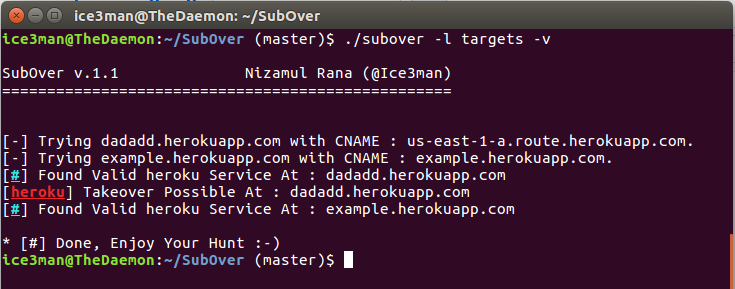
1) subzy

Subzy is a golang tool which helps you to find which subdomain is ready to takeover.
 

Link - https://github.com/LukaSikic/subzy


2) SubOver

SubOver is likewise a Go language based tool. It can undoubtedly identify and report vulnerable subdomain that can easily takeover.

Link - https://github.com/Ice3man543/SubOver


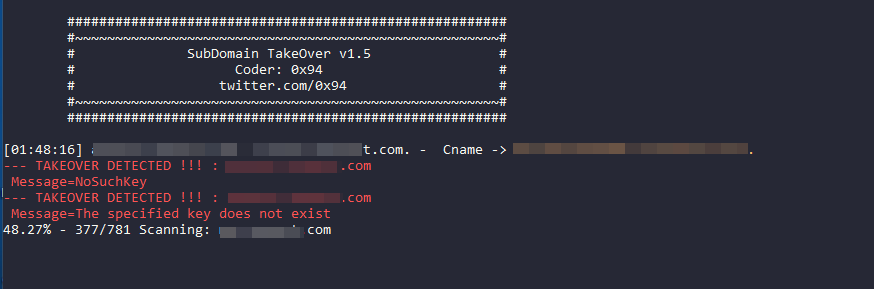
3) takeover


takeover is a Python based tool which recognize a subdomain which is not difficult to takeover.


Link - https://github.com/m4ll0k/takeover


4) subdomain-takeover


This tool also a python based which helps you to find which subdomain is ready to takeover.


Link - https://github.com/antichown/subdomain-takeover


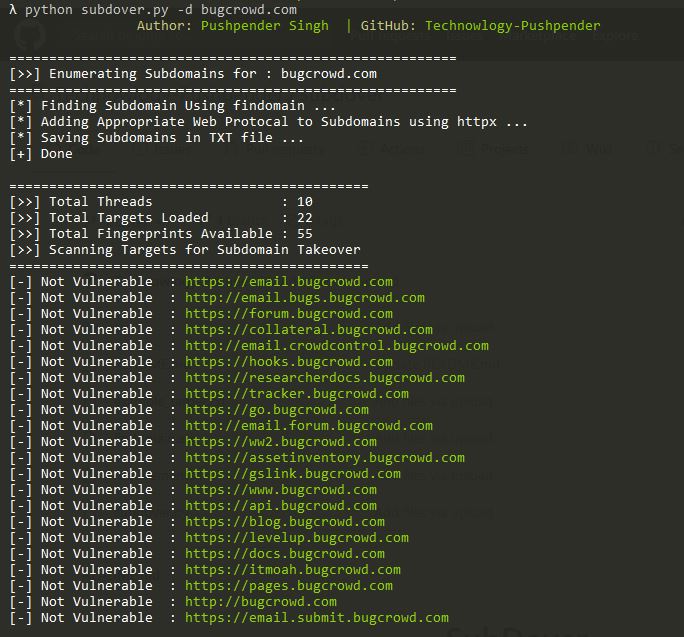
5) subdover

Subdover is a MultiThreaded Subdomain Takeover Vulnerability Scanner Written In Python3, Which has more than 70+ Fingerprints of potentially vulnerable services. Uses CNAME record for verification of findings.


Link - https://github.com/PushpenderIndia/subdover


If you have any query, please comment below.


Also read -

How to do phishing attacks in termux using SocialFish

How to create metasploit payload easily in linux & termux

How to install gui in termux

January 24, 2021

How to host website on Dark Web


Dark websites are the websites which cannot be accessed from normal internet.Many people use dark web hosted sites for various purposes like selling illegal goods,anonymity and many other.So how they host such websites on dark web? Well,they host their sites from normal web servers but the servers are well configured for dark web hosting.

Now the main question is can we host our own dark web hosted site? The answer is YES. We can host our website on dark web using our computer or laptop.We are going to host our website using a Linux machine.


What we need?

1) Any linux distro

2) Tor (Most Important)

3) Nginx 

In this post,we are hosting our site on dark web using Nginx server. So let's begin!


Installation -


1) Update packages


        sudo apt-get update


2) Now we need to install important packages


        sudo apt-get install tor nginx


3) Open terminal with root user


        sudo su


4) After this,open torrc file using -


        nano /etc/tor/torrc


5) Scroll down and remove '#' from these 2 lines


    #HiddenServiceDir /var/lib/tor/hidden_service/

    #HiddenServicePort 80 127.0.0.1:80


6) Now save ‘torrc’ file by pressing ‘Ctrl + X’ and press ‘Y’


7) Now start tor service using


        service tor start


8) Now go to the hidden_service folder using


        cd /var/lib/tor/hidden_service/


9) Now open ‘hostname’ file using


        cat hostname


10) You will get your dark website address.Now this is your dark website address.Note down this address into text editor or save this address somewhere.


11) Now we need to configure nginx for hosting dark web site.So open 'nginx.conf' file using


        nano /etc/nginx/nginx.conf


12) Now first locate ‘# server_tokens off’ and uncomment this line


13) After this, locate ‘# server_names_hash_bucket_size 64’ and uncomment this line,change bucket size from 64 to 128.


It will look like this -


14) After this,locate ‘# server_name_in_redirect off’ and uncomment this line


15) Now save this file by pressing ‘Ctrl + X’ and press ‘Y’


16) Now create your dark website folder in /var/www/ using-


        mkdir /var/www/tor


you can use any name instead of ‘tor’


17) Now open ‘sites-available’ folder using


        cd /etc/nginx/sites-available


18) Copy ‘default’ file with your dark web folder name.In this case I am using name ‘tor’ so type -


        cp default tor


19) Now open ‘tor’ file


        nano tor


20) Locate these two lines -

        listen 80 default_server;

        listen [::]:80 default_server;


21) Now remove ‘default_server’ from these line.It will look like this-


22) After this,locate ‘root /var/www/html’ and replace ‘html’ with your folder name.In my case it will become ‘root /var/www/tor’


23) Now scroll down and locate ‘server_name’ line and add your dark website address.It will look like this-


24) Now save this file by pressing ‘Ctrl + X’ and press ‘Y’


25) Now type -


        cd .. && cd sites-enabled


and now we enable our site using -


        ln - s ../sites-available/tor


Here ‘tor’ is your dark web folder name


26) Now start nginx server using -


        service nginx start


27) Now put your website html files in /var/www/tor


28) Now open Tor Browser and enter your website address ending with ‘.onion’


Thats it!


If you have any doubts regarding this,leave a comment!


Termux Posts